October: Homepage Dashboard and Sign-up features

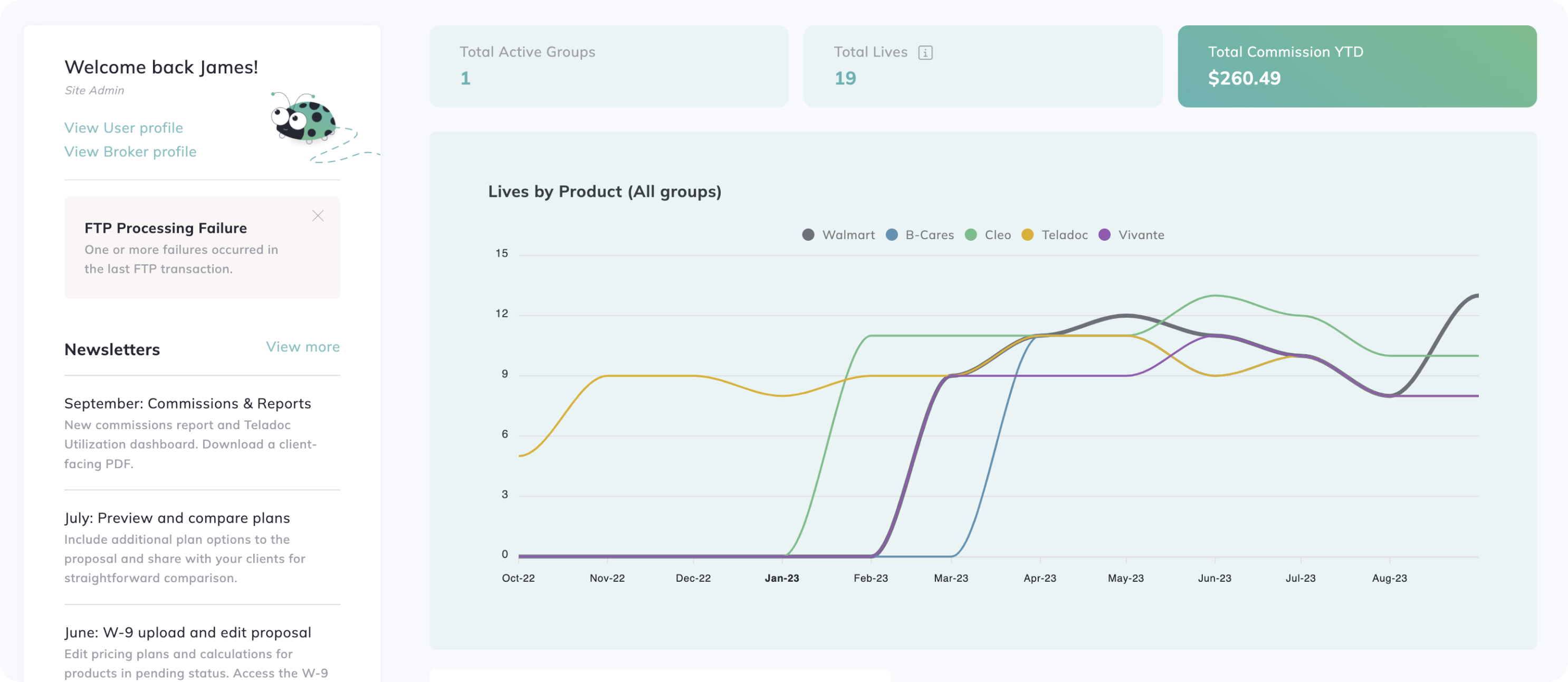
We are pleased to introduce a range of new reporting features on the Homepage, encompassing statistics on lives, commissions, payments, benefit utilization, and more.
Enjoy the new enhanced sign-up process that includes mobile SMS verification and provides users with intuitive guidance.
Homepage Dashboard
REPORTS
The new Homepage Dashboard is your default landing page and is available under the Home tab on the left-hand navigation menu. You can keep abreast of the latest changes to your commissions, payments, and total client subscribers. Additionally, you'll have access to various convenient links to quickly access the most essential features to more easily navigate the app.
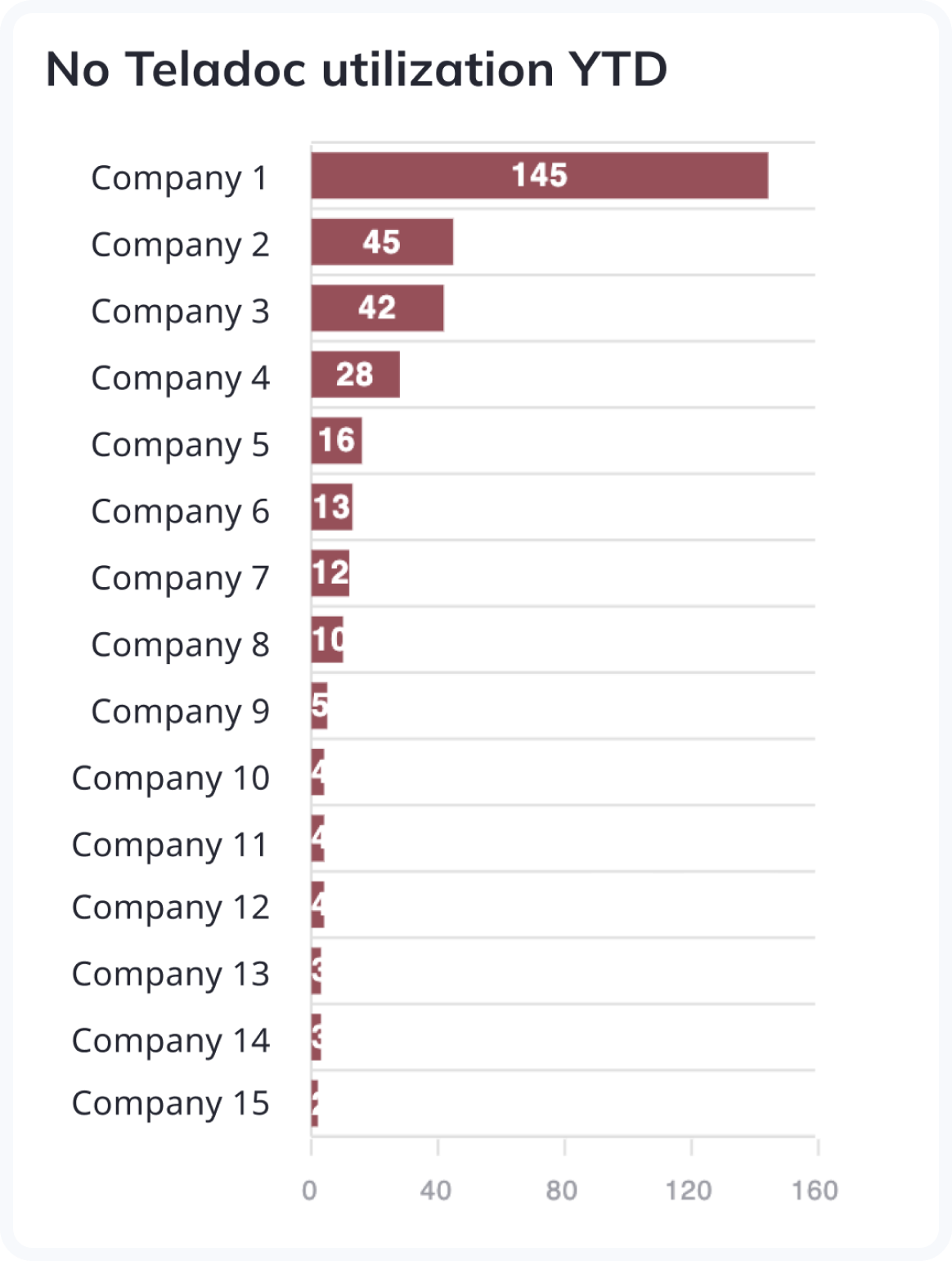
A shortcut of the Teladoc Utilization report is available on the homepage now. This report highlights the most prominent groups that have not utilized any Teladoc Benefits year to date or whenever they signed up this year.
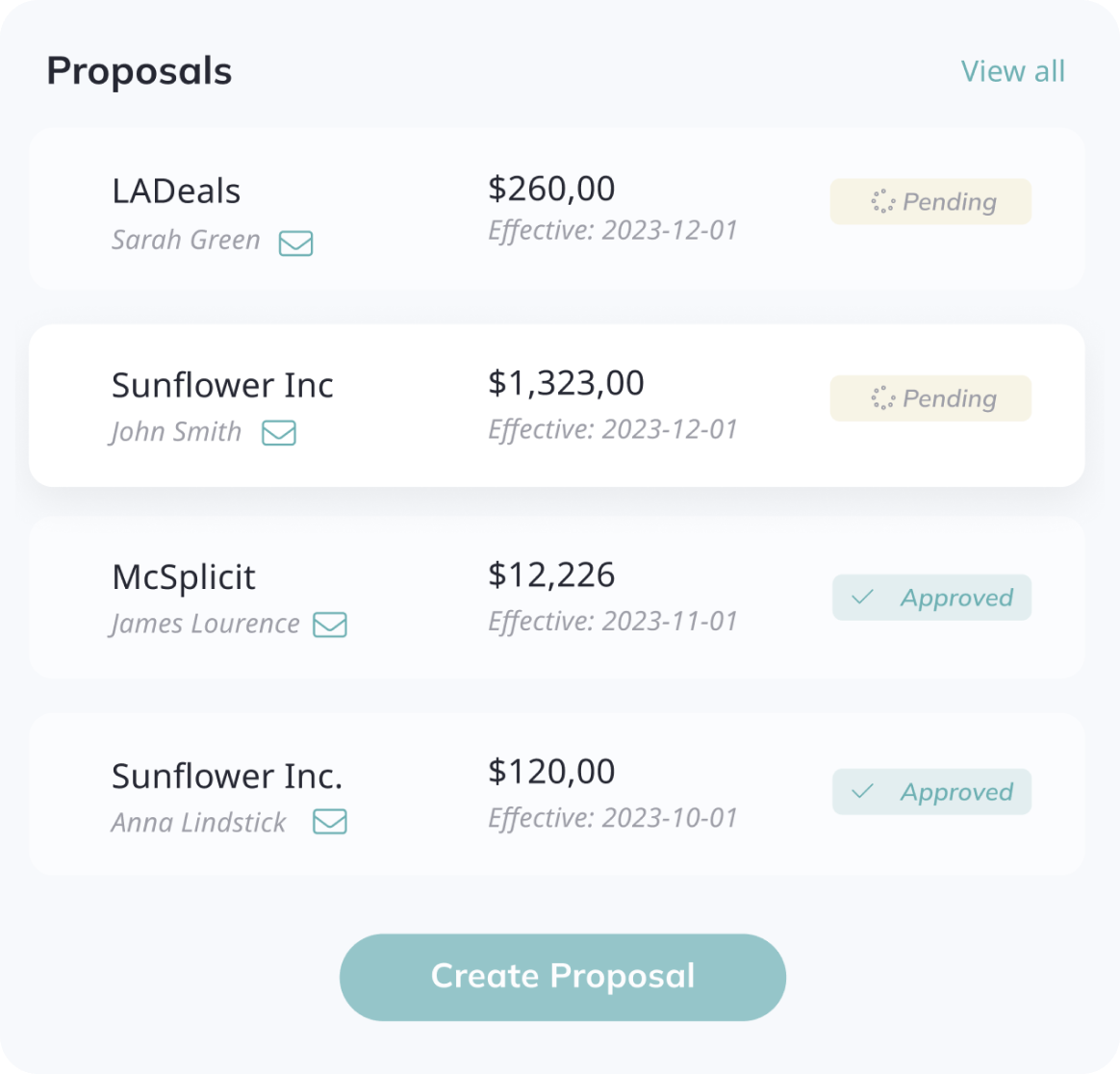
The proposals list shows the latest proposals by effective date (even ones set for the future). Statuses will be displayed together with the amount, and we will list the contact and a convenient email link, if available. Click on the "View all" link to be redirected to more details on the Proposals table view.
Sign-up improvements
USERS
We've introduced an informative screen as part of the sign-up process to assist users in selecting the appropriate pathways based on their roles and accessing the most up-to-date, pertinent information.
Brokers can access the existing flow by clicking the Broker tile. Employers will be directed to the "Find my invitation by email" flow. Subscribers can peruse the onboarding materials, while other users have the option to "Request a demo" with our support team.
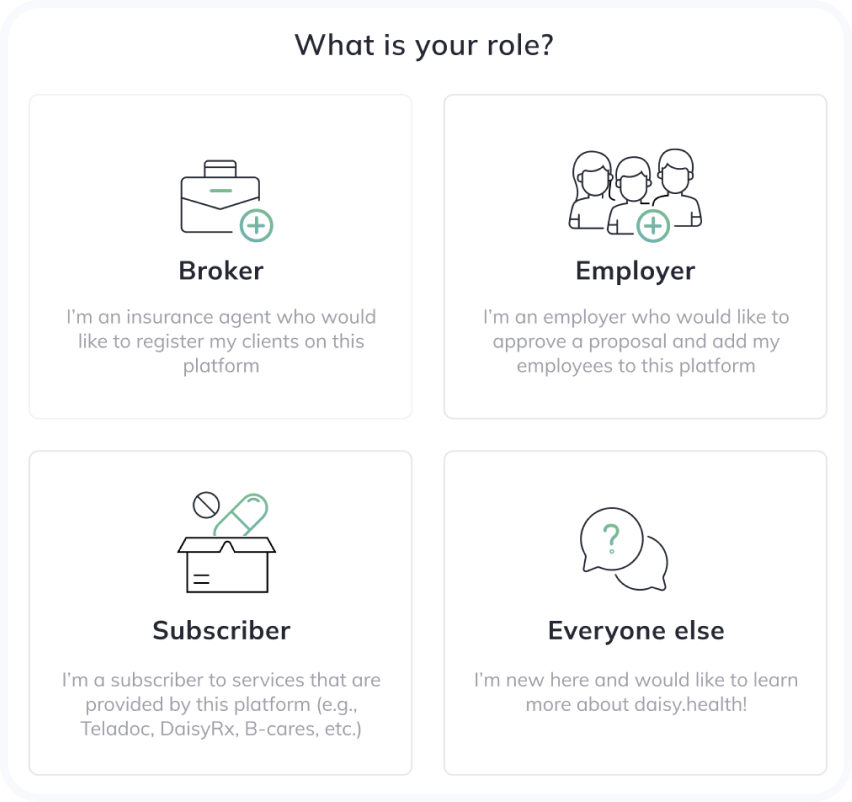
Sign-up with a mobile device
USERS
The updated sign-up form for Brokers now comprises two steps, with the mobile device verification option becoming available in the second step of the process.
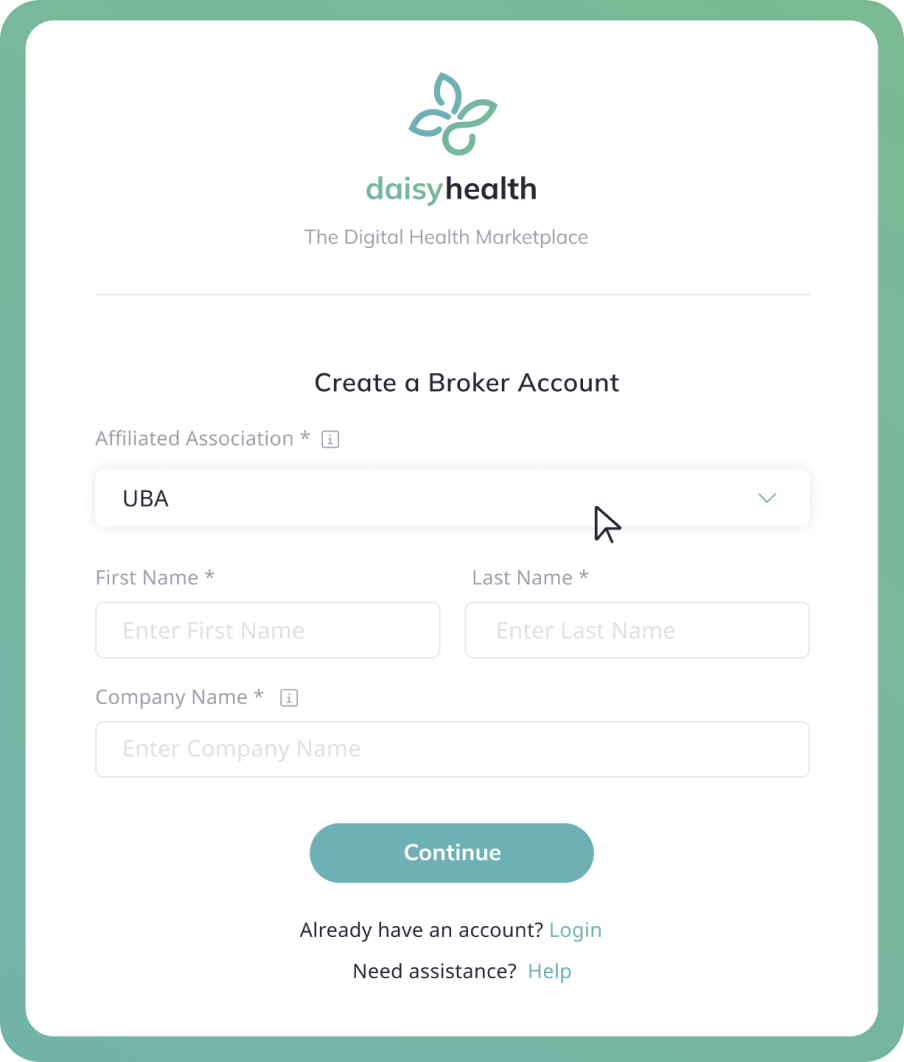
The mobile phone field is not mandatory, but if provided, it will offer an extra option to receive the verification code through SMS.
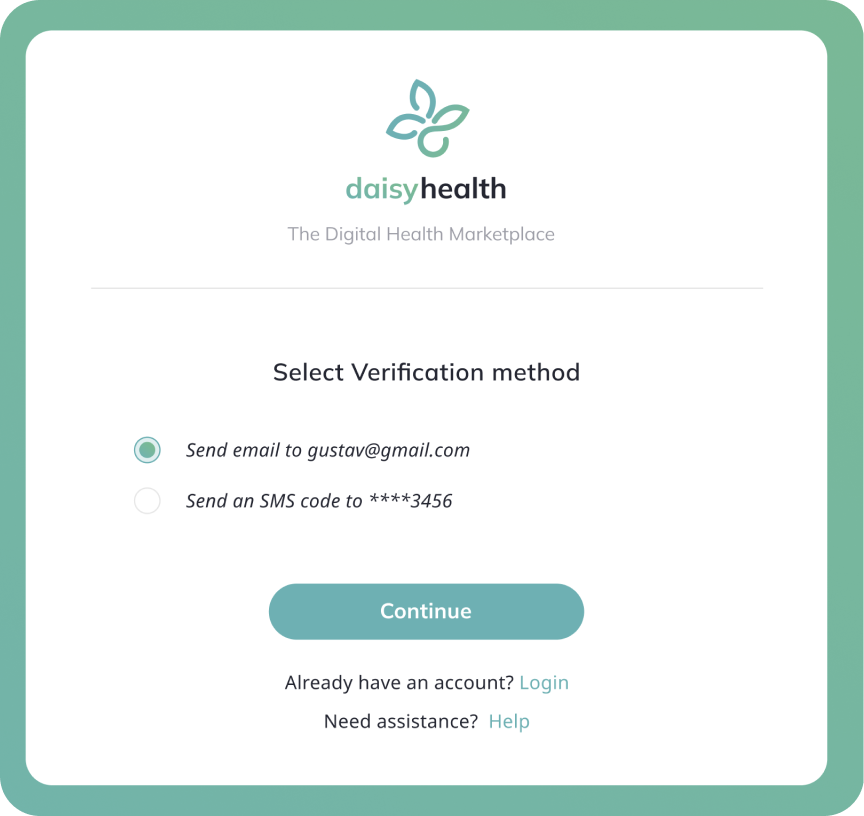
Depending on the broker association, the steps of the form may differ slightly.
Add mobile phone on the Create Proposal flow
USERS
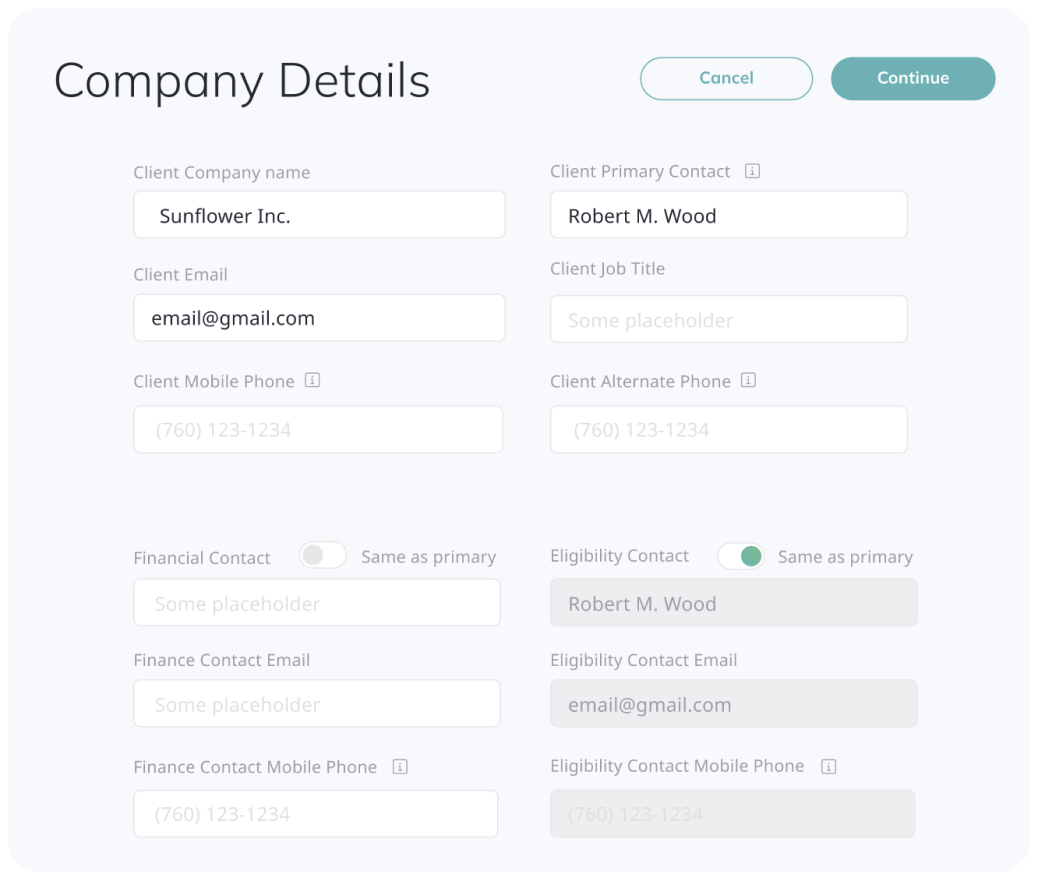
In the “Create Proposal” flow, additional fields have been introduced:
Mobile Phone: This phone must be able to receive text messages and will be validated to check if it is a mobile number. The Employer can use it later to verify their account via SMS. Standard messaging and data rates may apply.
Alternate Phone: This field can accommodate any office, home, or other phone that Brokers may use for communication with clients. The Daisy app does not employ this phone for verification purposes.