November: Exciting New Features

New multi-product proposal feature that allows building proposals with multiple products. Your clients can approve them in one easy step and pay with an existing payment method or create a new one.
Create a proposal with multiple products
PROPOSALS
Brokers can now add multiple products to a "shopping cart" in a single proposal to a prospective Employer.
After adding the first product, the Broker can add another product to a proposal by clicking on the "Save and add another product" under the "Continue" dropdown.
There is also the ability to save the Proposal as a draft and come back later from the Proposal table or use the "Save and Review Proposal" option to overview the Proposal and send the invitation to the company contact.
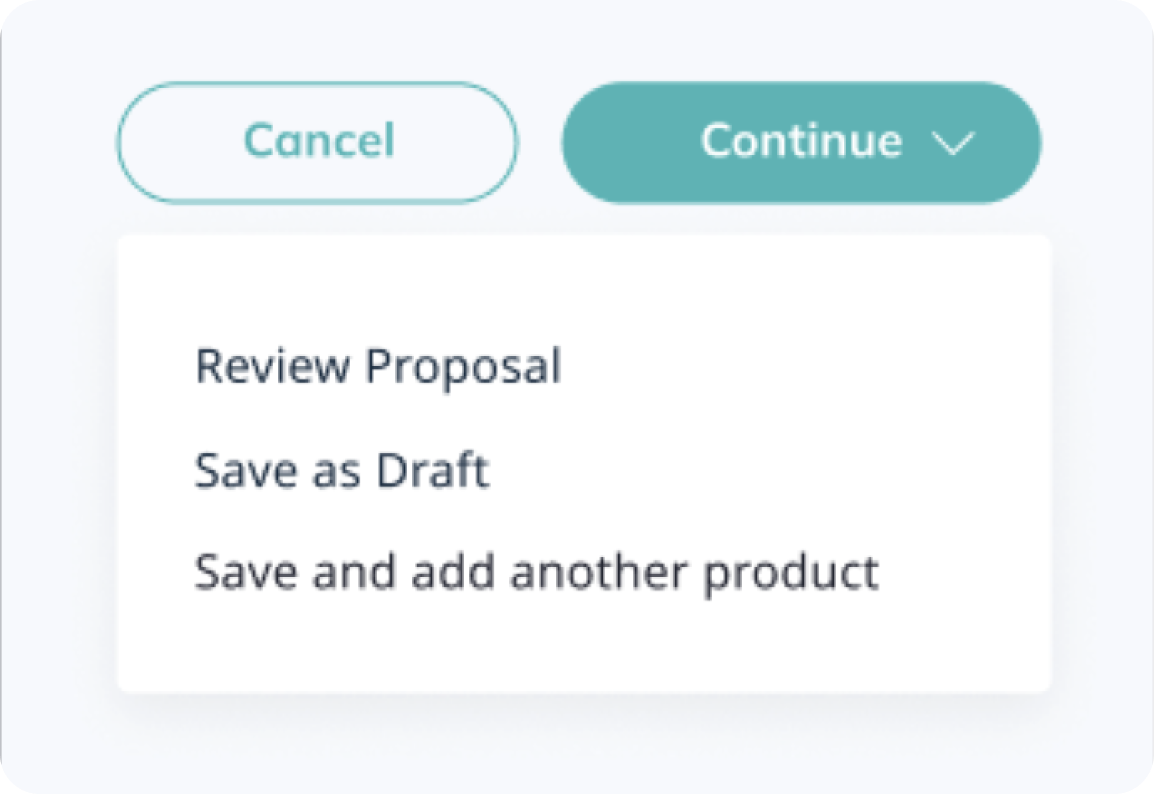
The "Save and add another product" button will save the previous product and redirect you back to the Marketplace. To add another product, click on the "Create on Proposal" button and repeat the same steps.
The products already in the Proposal will be marked with a yellow tag, as shown below. The company contacts are the same for all products, so you won't have the option to change them unless you create a separate proposal.
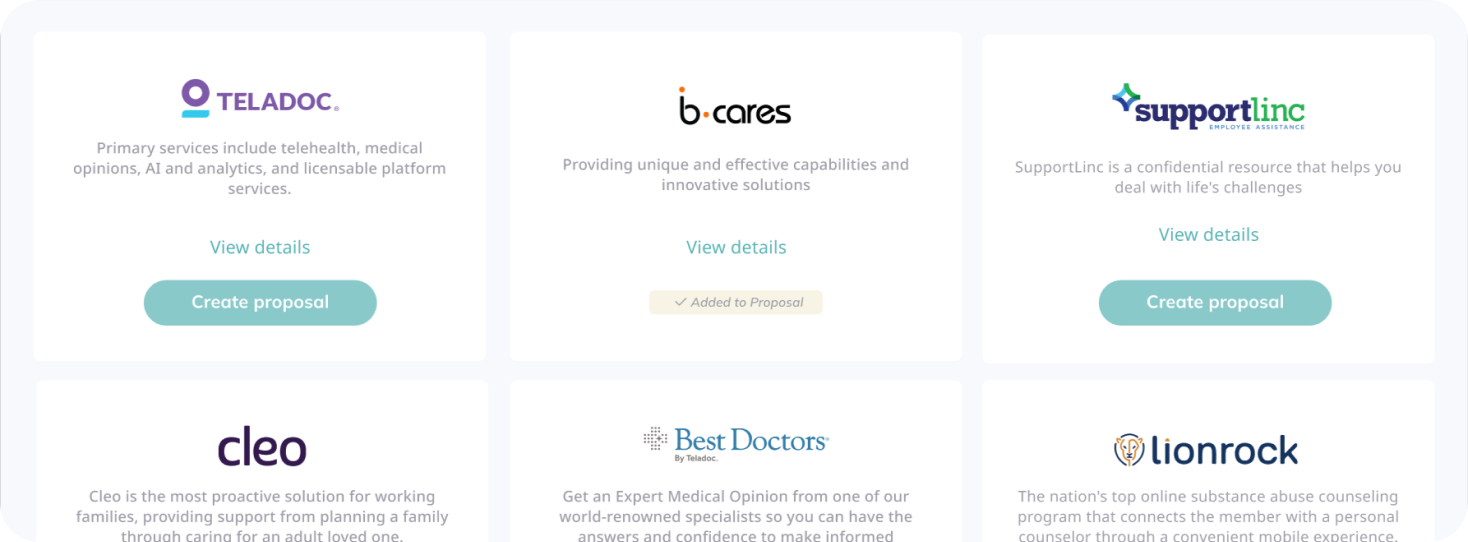
Repeat this process to add as many products as we have available, and click on the "Review Proposal" option when you are finished.
Review Proposal Summary
PROPOSALS
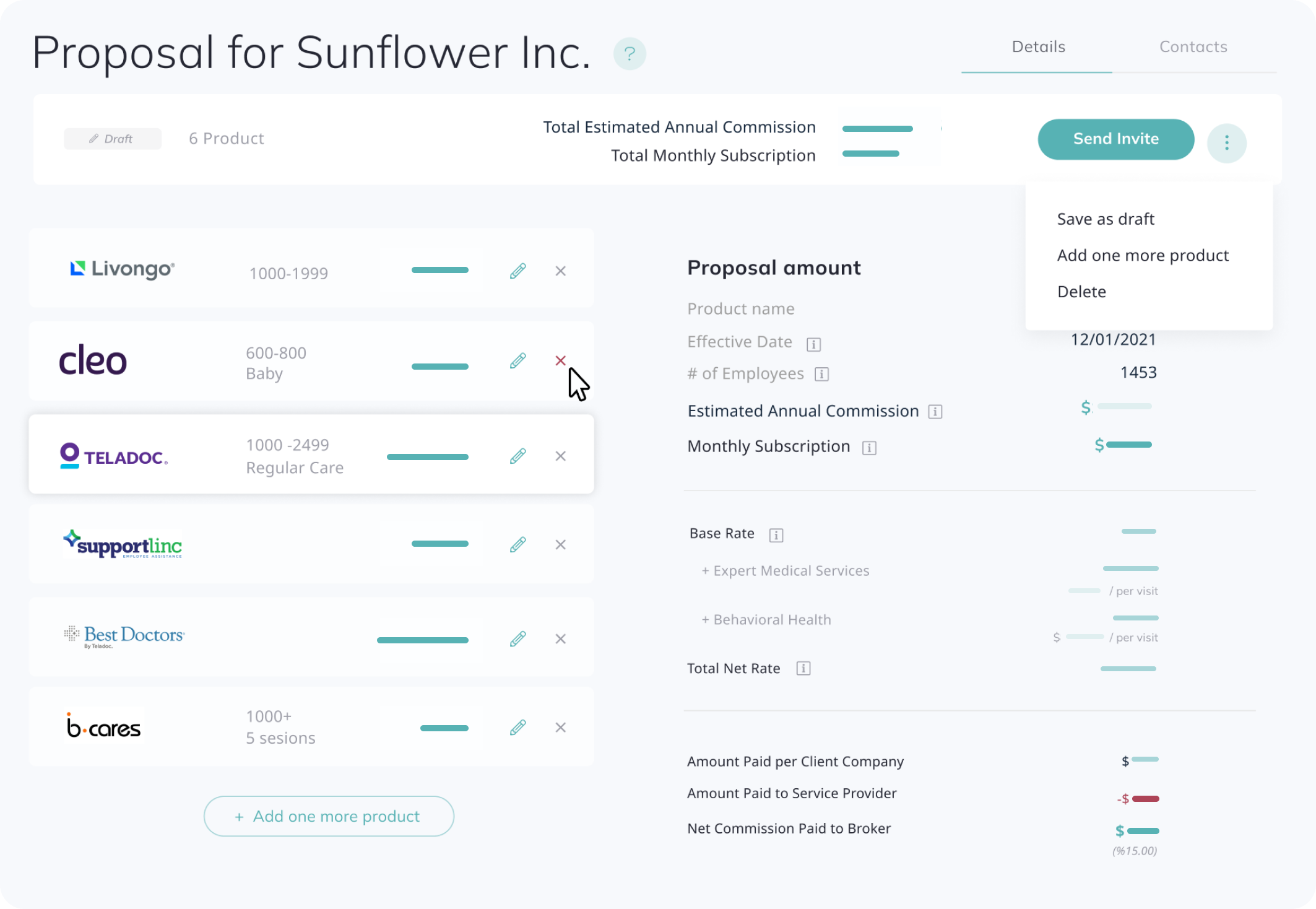
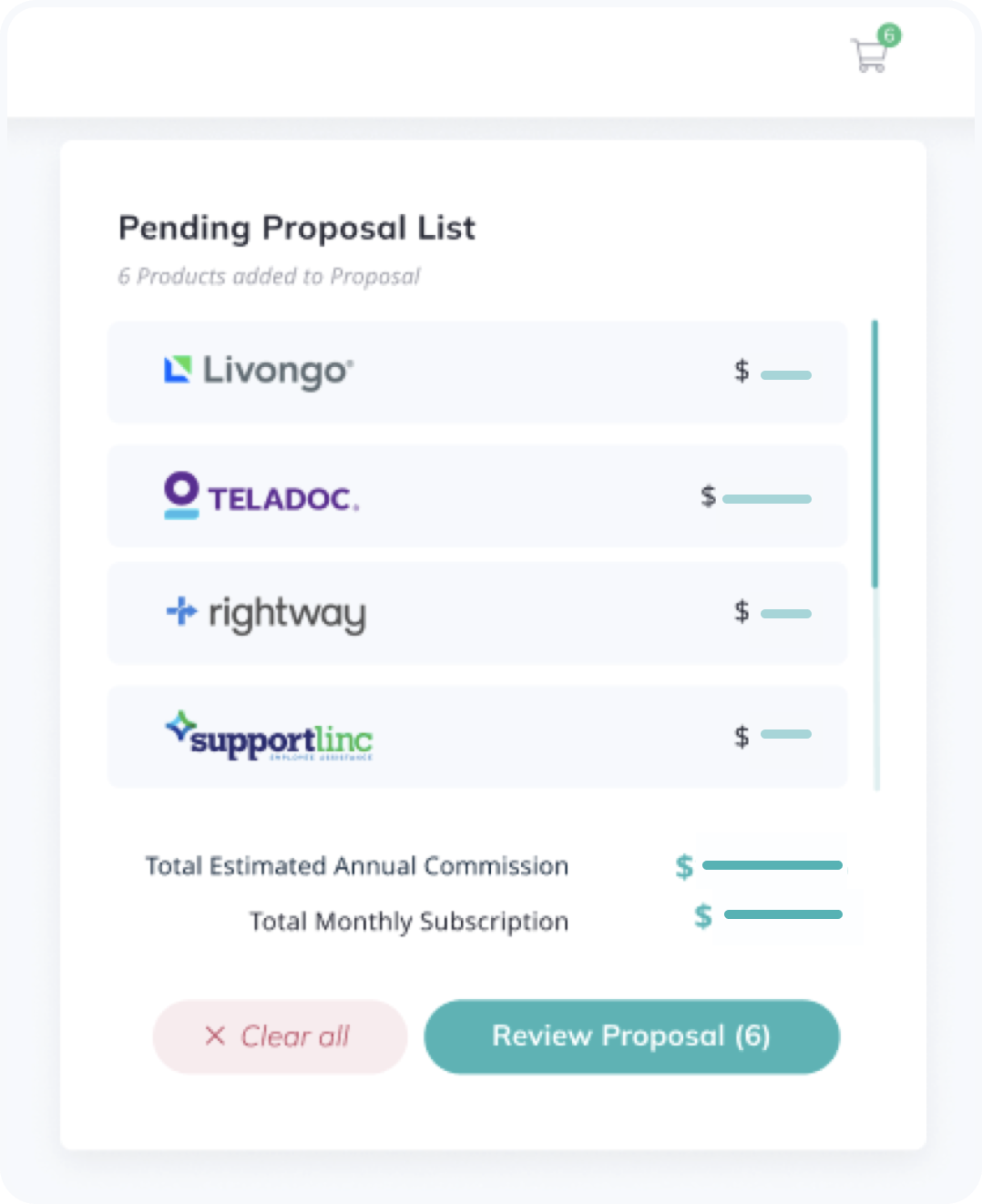
On the Review Proposal page, the Broker can see several product tiles with the number of employees range, a package name (if applicable) in grey, and a Monthly Subscription amount in green color. The general proposal summary can be found at the top of the page.
By clicking on the product tile on the left side, it is easy to overview the proposal amount on the right side. The Broker can edit or remove the products from the list or add more products by clicking on the "Add one more product" button.
After clicking the "Send Invite" button, the Employer will get a notification to subscribe to all the products simultaneously.
This page is available from the top bar via the cart icon. Brokers can return to a summary page by clicking on the "Review Proposal" button or delete all saved products and start over by clicking on "Clear all."
In the Active Proposals table, the proposals with multiple products will be listed as separate lines, one for each product with the same status and company details. You can click on any of them to see the same Proposal.

New product available: B-cares
PRODUCTS
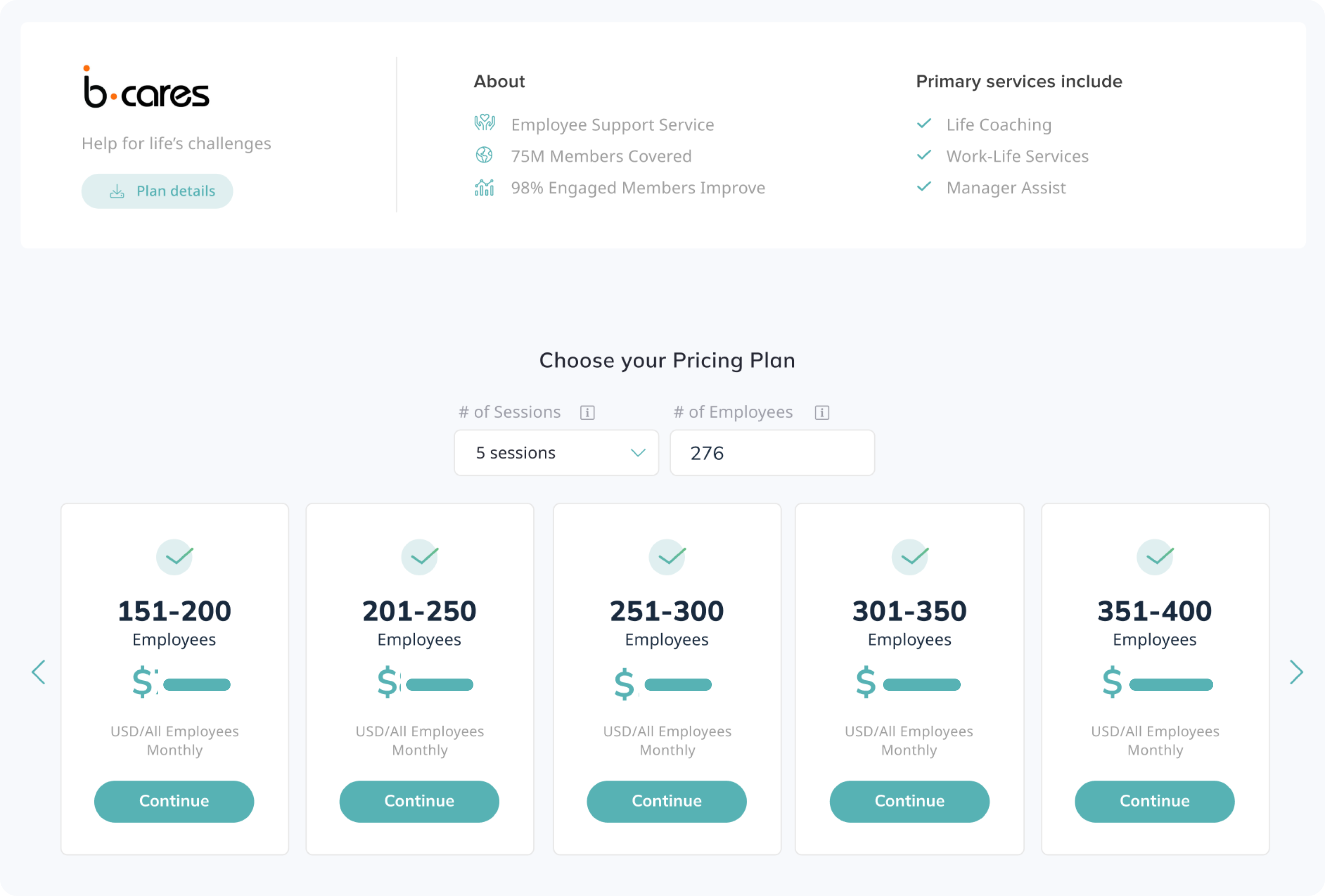
Brokers can see a new product, B-cares, on the Marketplace page with different pricing plans for 3, 5, or 8 sessions and a range of pricing plans depending on the number of employees.
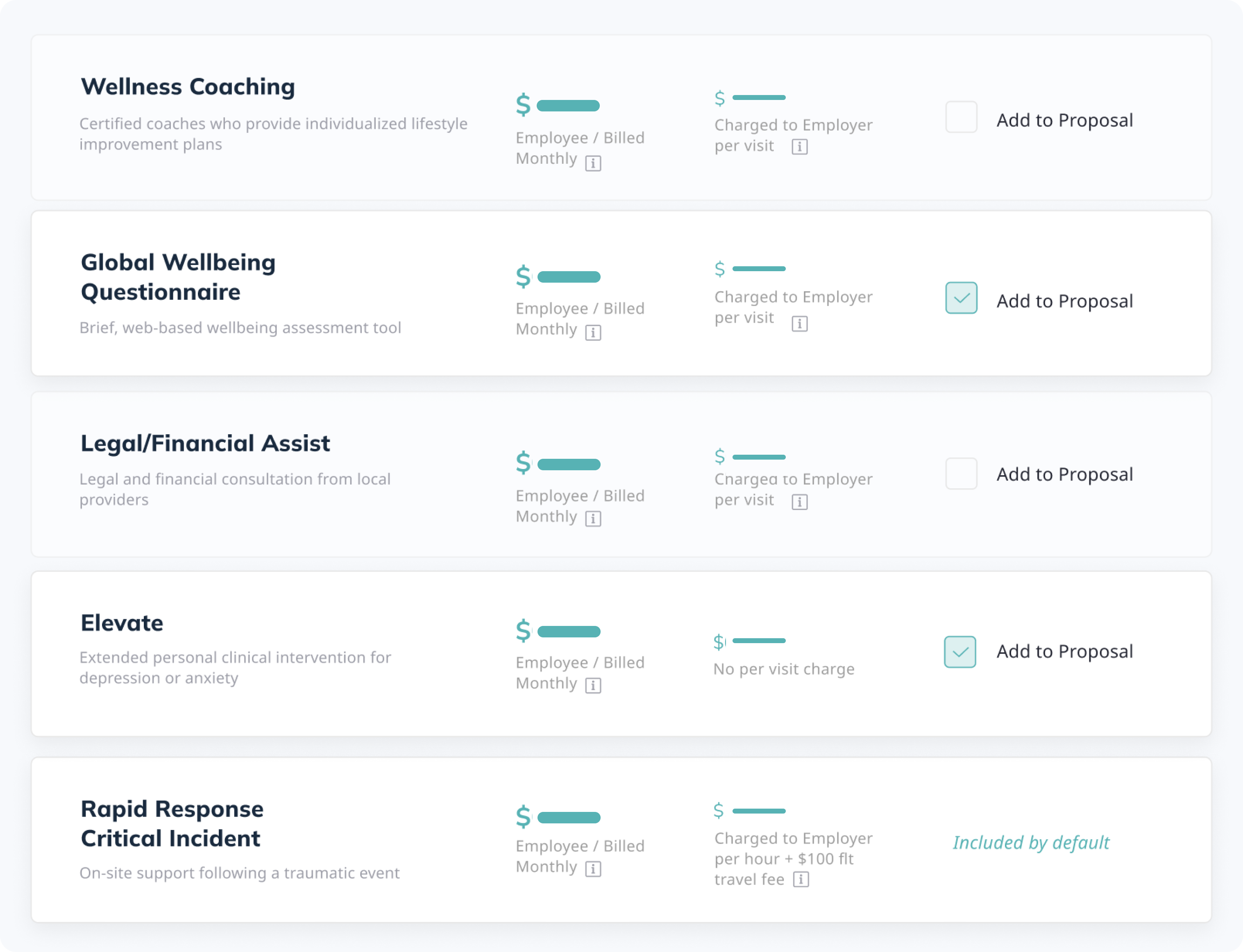
B-cares has five additional products that can be added to the Proposal. Rapid Response Critical Incident is already included in the Base rate.
Reactivate the User in future
USERS
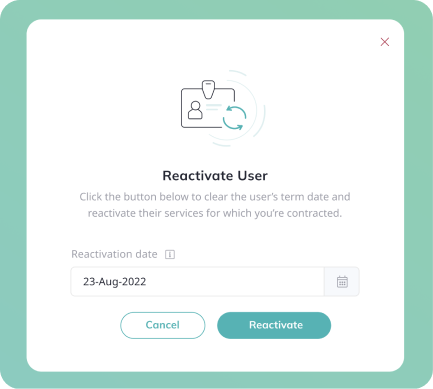
You will now see a new date input form on the Reactivate Employee modal window you click “Reactivate.” You will be able to insert any reactivation date that must be today or in the future in the date input form on the modal. However, we default it to today's date if that's what is desired.
Terminate/Reactivate Employees supporting article
Create a proposal for an existing Employer
EMPLOYERS
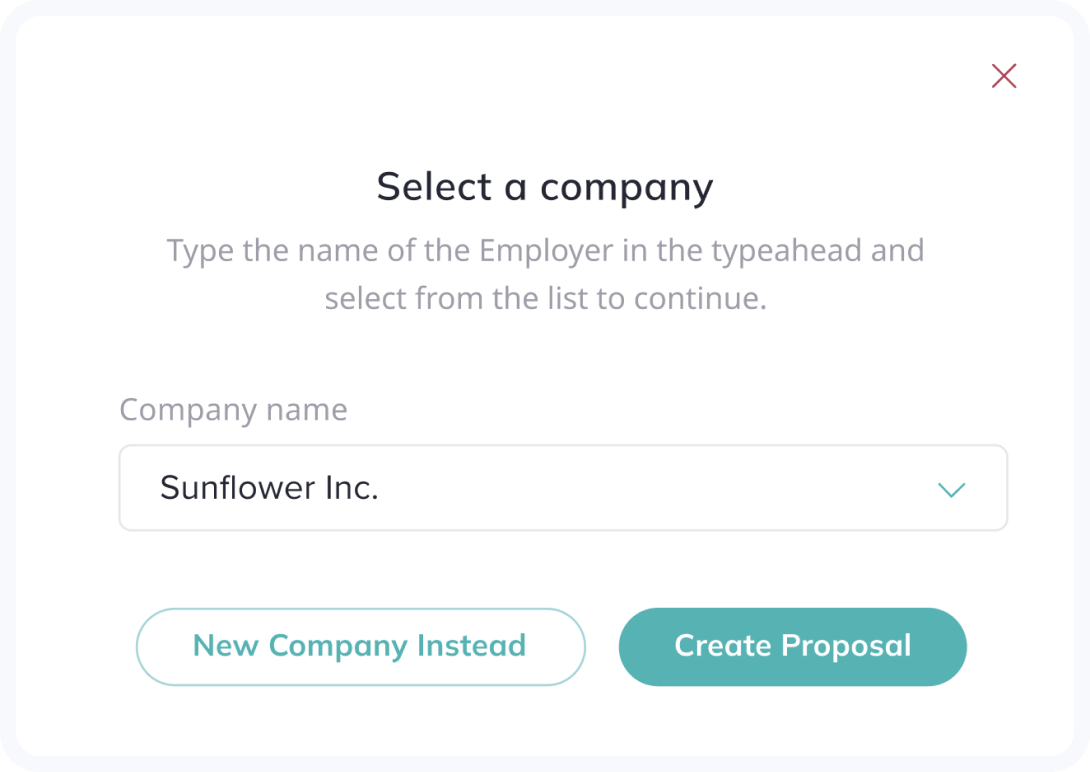
After selecting any product on the Marketplace, Brokers will see a modal window with two options.
The "New Company" option creates a new Employer for the current Proposal. In this case, enter the contact details as shown below.
How to create a Proposal supporting article
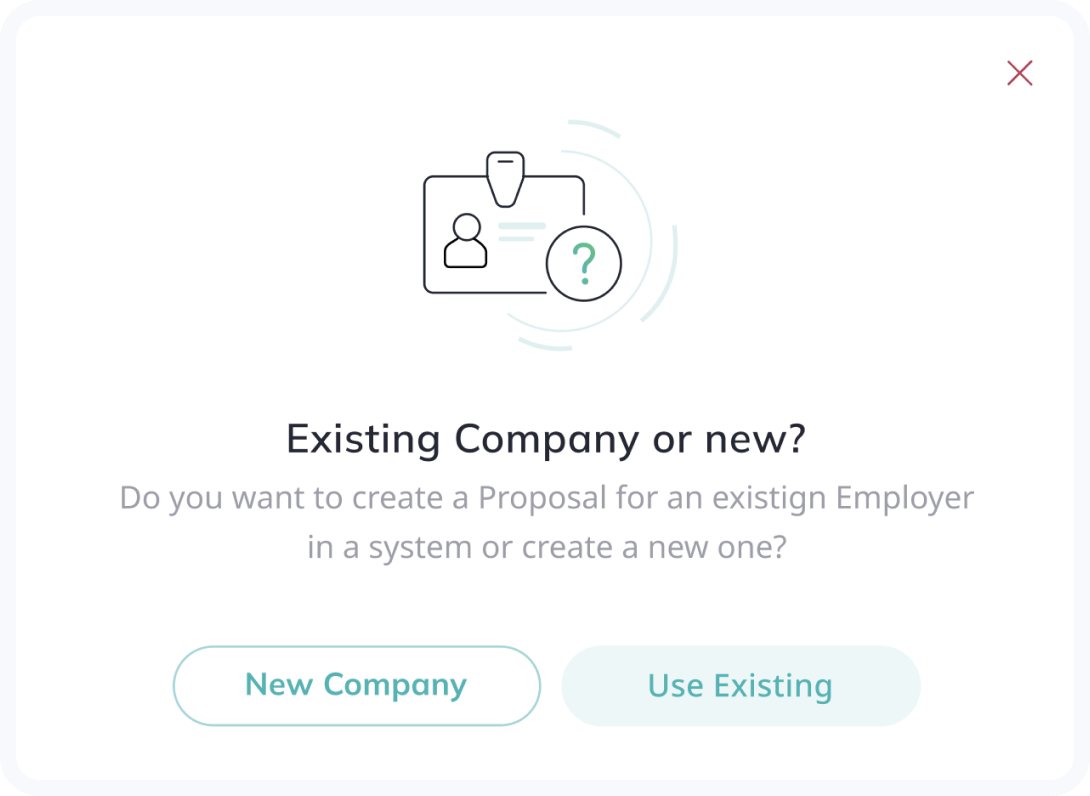
The "Use Existing" option is used to search and select an Employer from the dropdown list so you can reuse all the original information and send a new proposal to the Employer already in the system.