
July: Preview and compare plan options

Include additional plan options to the proposal for straightforward comparison in a dedicated table view.
Share options with your clients to choose the best fit.
Enjoy the new filter-sensitive employee export process.
Compare benefit plans
PROPOSALS
Introducing the product comparison feature for a more enhanced proposal process!
Once you've added a single benefit to the proposal, you can easily include as many additional plan options as you like, each presented as a separate line for straightforward comparison in a dedicated table view so that your clients and you can pick the best choice and assess cost-benefit analysis.
Click on the "Add option" button, which will appear on the tile of the products already added to the proposal. This feature is available for products that have multiple plans available (e.g., Teladoc, B-cares, Walmart, and Cleo).

Once added, you can conveniently share these options with the client to allow them to compare the available plans.
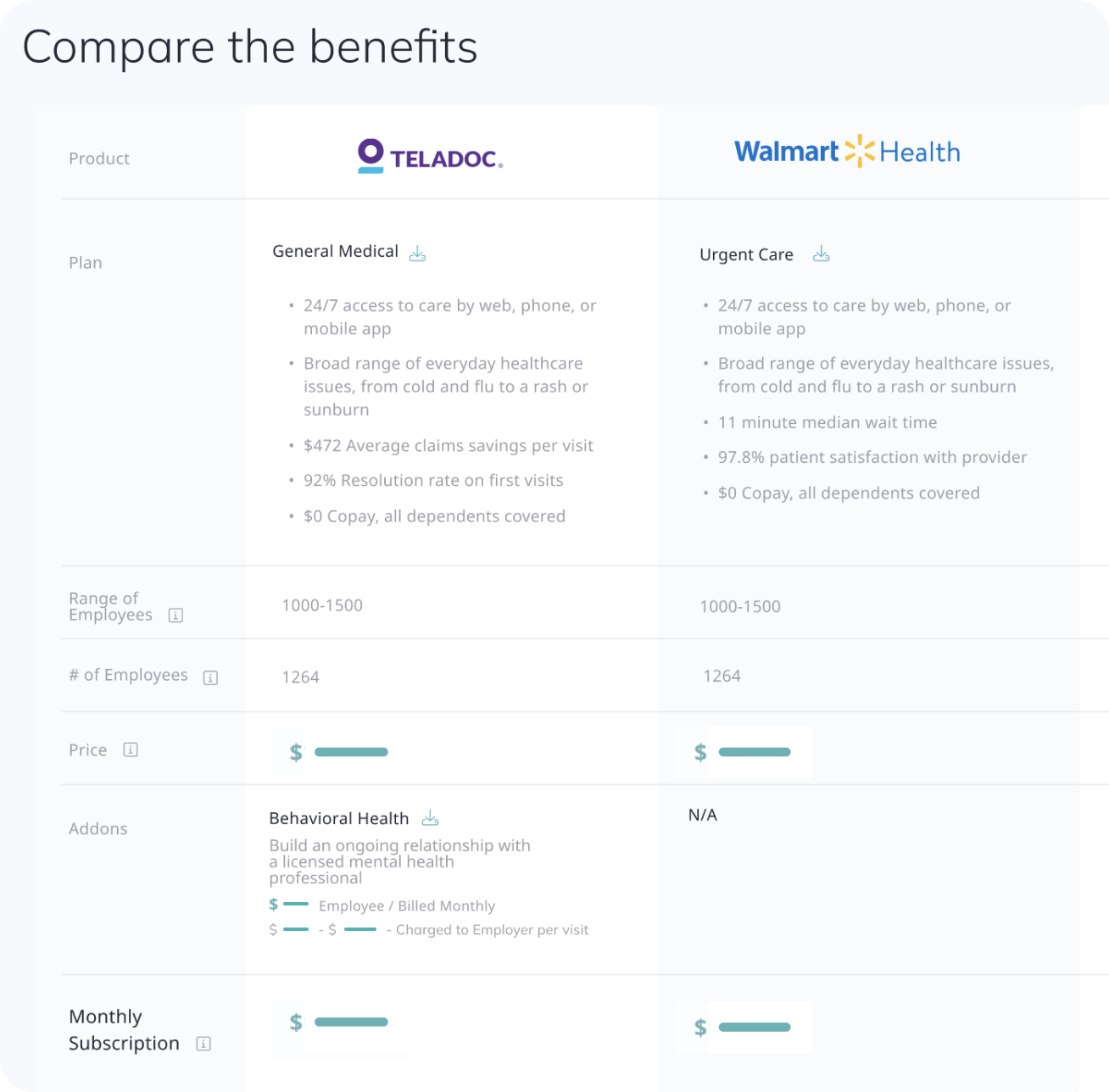
After adding the first plan option, the proposal enters preview mode, where totals are hidden, and the "Send Invite" button becomes the "Send Preview" button so that you can review the proposal with your client and choose the appropriate plan for the final proposal.
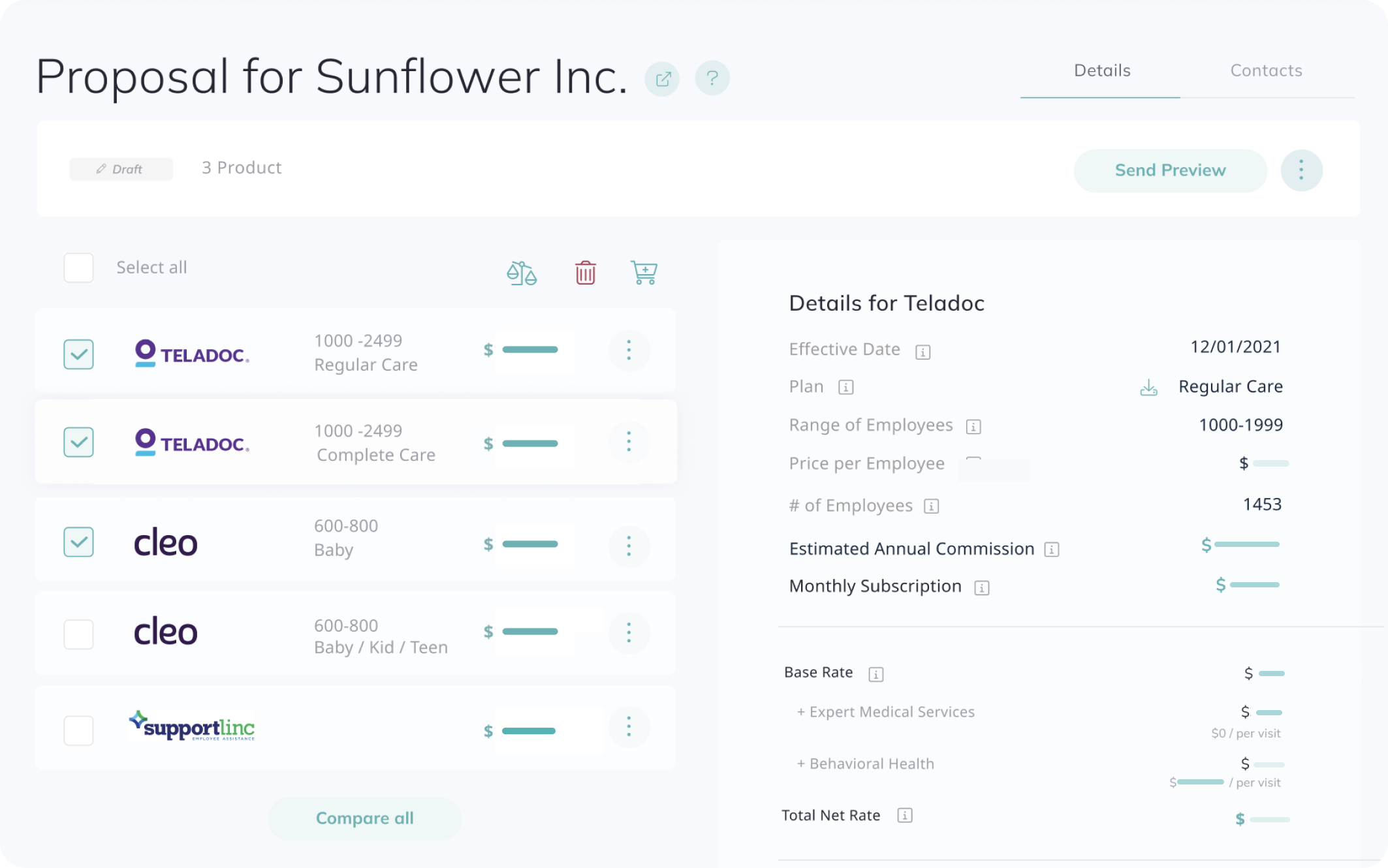
Review proposal multiple actions
PROPOSALS
A new feature with multiple checkboxes is now available, granting you greater control over the benefits selection process:
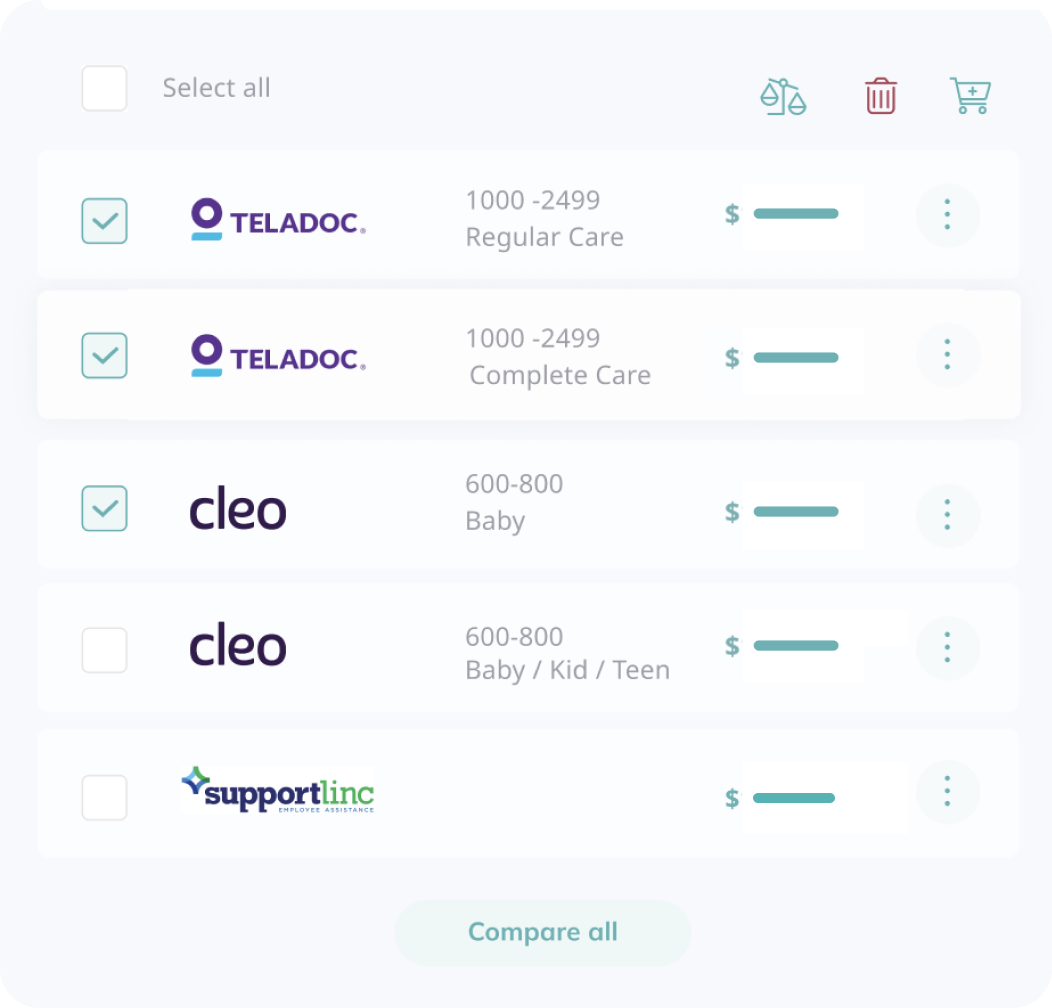
Compare benefits: Easily compare different product options by selecting the checkboxes next to the product logo. Once selected, click the green scales icon to initiate a side-by-side comparison of the chosen options. For a comprehensive overview, you can conveniently use our one-click "Compare all" button to open the comparator table, which includes all products from the current proposal.
Delete items: If you wish to remove a specific option or multiple counts simultaneously, simply select the checkboxes next to the product tiles and click the red trash bin icon. Please note that you must leave at least one product in your cart, so it can’t be deleted unless the whole proposal is deleted.
Filter-sensitive employee export
USERS
Now, your exported employee table will precisely reflect the filters applied, providing accurate and targeted data for seamless analysis and reporting.
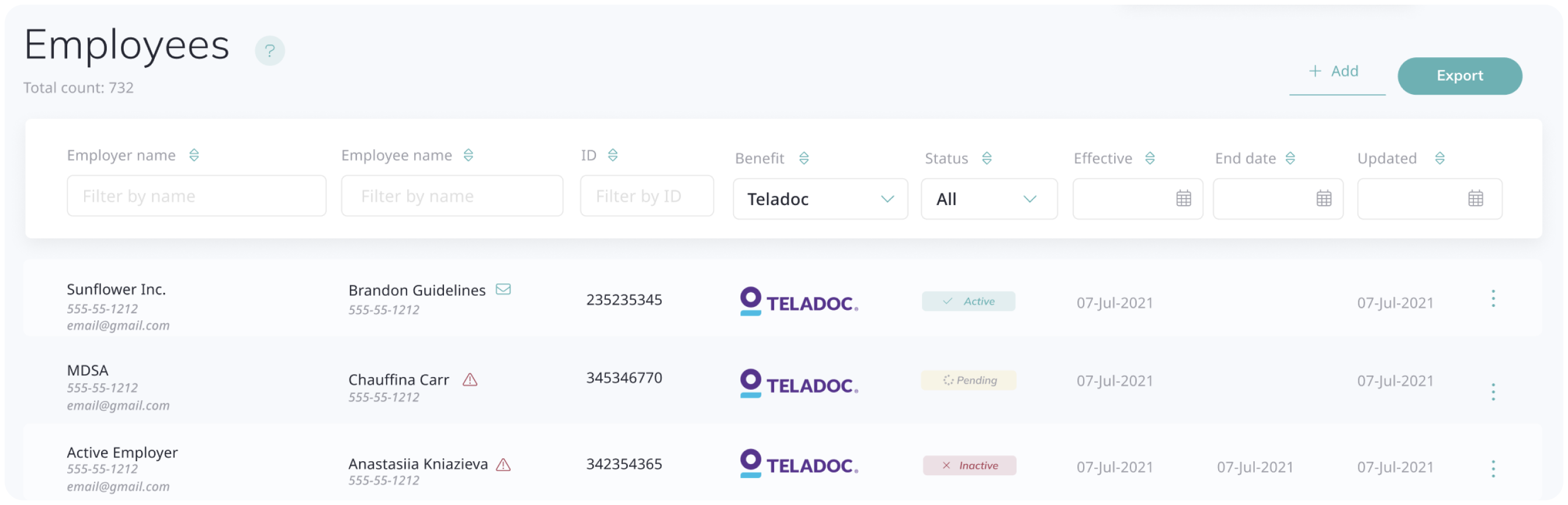
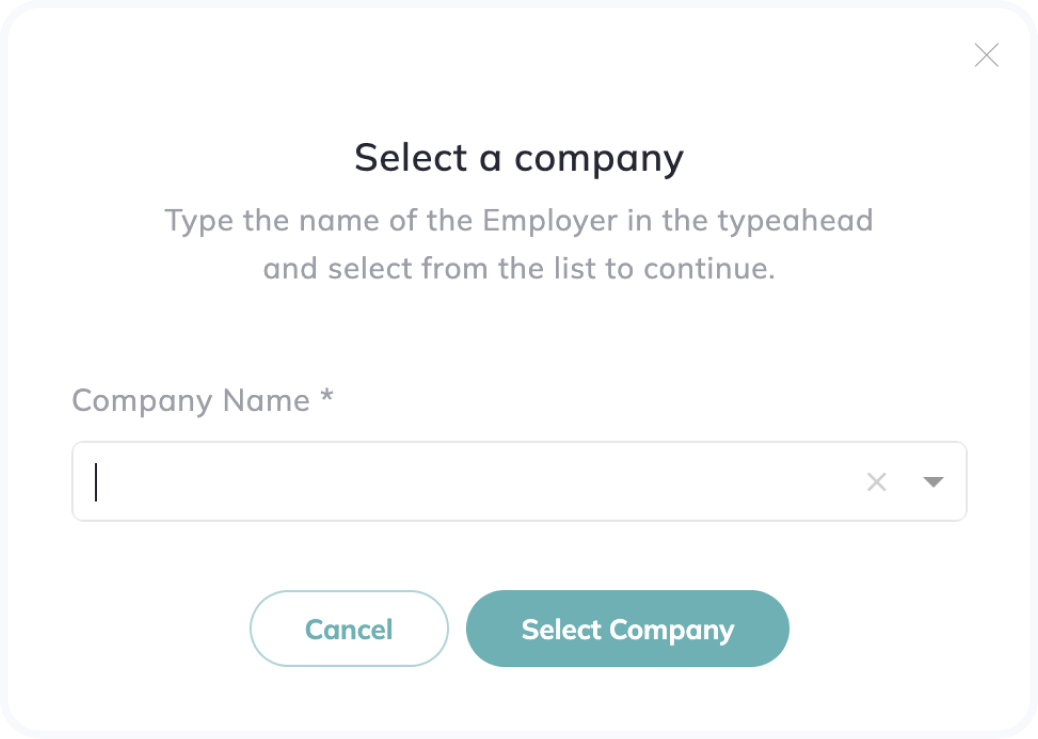
Note that if you use the employer filter, you must select the same company in the subsequent modal so that the correct company’s data is exported.
Enjoy a streamlined and hassle-free process for accurate data analysis and reporting that can be further analyzed in your favorite spreadsheet tool.